In this guide
Short answer
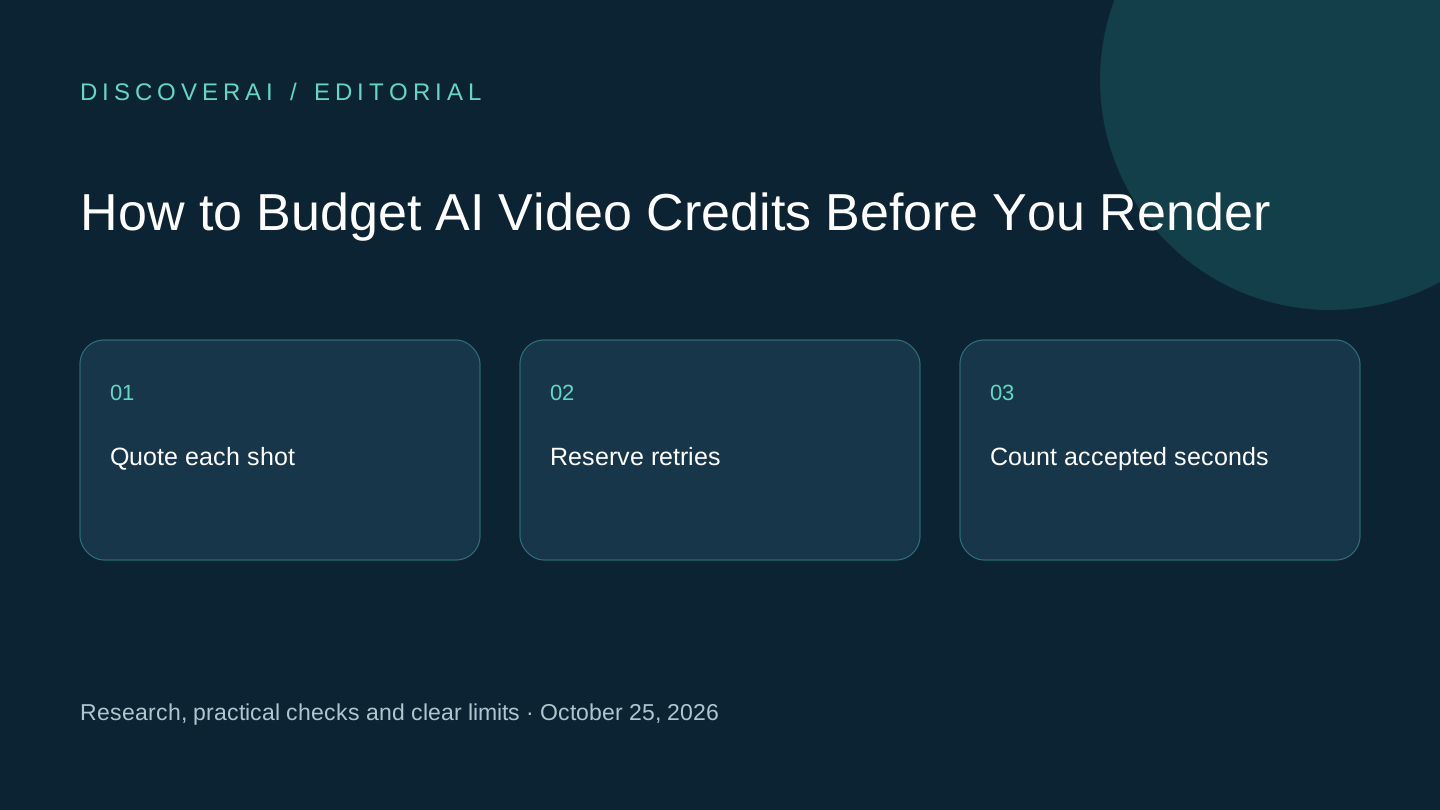
Budget for approved footage, including rejected takes and finishing time. Start with one representative scene and a fixed credit cap. Use the pilot's actual spending to decide whether a larger pack or subscription fits the project.
Download the video credit-budget worksheet. It is public and does not require a newsletter signup. The figures you enter should come from the selected model and settings at the moment you run the job.
Free creative AI buyer checklist
Measure approved assets, rights, and revision time.
Get a checklist for quality, credits, consent, licensing, and cost per approved asset—plus weekly creative-AI changes.
1. Separate the brief into shots
Write a shot list before buying credits. Give each shot an intended duration, a purpose and acceptance criteria. “Looks cinematic” is too vague to budget against. “The same character carries the same blue bag through three cuts” gives the reviewer something concrete to accept or reject.
Mark which shots actually need generation. A title card, an existing licensed image or a simple screen recording may already solve part of the brief. Keeping those items out of the generation budget makes the estimate easier to audit.
2. Record the quote for each selected configuration
For every generated shot, record the provider, model, duration, resolution and current quoted credits. Save a date or screenshot of the estimate in your own project records. A plan-level “videos per month” illustration cannot settle the cost of a different configuration.
GenFlick's pricing documentation explicitly says settings and revisions affect production cost. Our GenFlick review explains its free-access boundary and paid-credit options. Use the product's actual quote rather than copying a generic rate from another service.
3. Add a deliberate retry allowance
Use a hypothetical planning example: six shots at eight credits each need 48 credits for one attempt per shot. Allowing three attempts for each raises that to 144 credits before separately charged audio or finishing. These are invented worksheet inputs, not a vendor quote or an observed acceptance rate.
Set a stop rule alongside the allowance. For example, after three unacceptable attempts on one shot, simplify the brief or use another production method. Repeating an unchanged prompt indefinitely is a spending decision, even if each individual render seems inexpensive.
4. Run one representative scene first
Pick a scene containing the project's hardest requirement. Record every charge, accepted take and minute of review. Keep technical failures separate from creative rejections: a service may return credits for the former without returning them for the latter.
After the pilot, divide total generation spending by accepted seconds. Then add the cost of review and correction time using a rate appropriate to your work. Keep those two numbers visible so a low generation price cannot conceal an expensive finishing process.
5. Choose the purchase size for visible work
Compare the credits needed for the next approved production stage with the smallest suitable pack and recurring plan. Write down renewal, expiry, carryover and optional automatic top-up settings. A lower per-credit rate on a large balance is useful only when the project is likely to consume it.
If your estimate exceeds the cap, reduce scope before funding more attempts. Shorter scenes, fewer generated angles or a mixed production method may preserve the message. Ask the client or project owner to approve a changed scope before spending against it.
6. Close the loop after delivery
Keep quoted credits, charged credits, rejected takes, accepted seconds and correction time in the worksheet. Use them for the next estimate. One project's results can guide a similar job, but should not become a general performance claim about the tool.
Compare video tools and use the calculators for broader cost planning. If you want the site's weekly tool briefing, preview the newsletter before subscribing.
Transparency
How this guide was checked
Editorial accountability
Who checked this guide
- Evaluation type
- Research-based verification
- Last materially checked
- Evidence
- 1 listed sources
Hands-on testing is identified explicitly. Research-based coverage uses cited product documentation and other named sources; it does not imply every paid plan was used. Read the full methodology.
Editorial basis
What this guidance is based on
- Editorial basis
- Source-led analysis
- Primary references
- 1
- Products covered
- 1
- Last checked
- 2026-10-25
Important limits
- • Features, availability, and pricing can change after publication; confirm consequential details with the provider.
Sources and references
References cited by this article. Check the original source for scope, dates and current terms.
Frequently asked questions
How many retries should I budget?
There is no universal number. Set a conservative allowance, run a representative scene and update it from actual acceptance data.
Are the example credit costs vendor prices?
No. The example uses hypothetical inputs to demonstrate the calculation.
Is the worksheet email-gated?
No. The CSV is publicly downloadable without signing up.
Tools mentioned in this article
GenFlick
GenFlick combines AI video production tools on one credit balance. See free-access limits, paid plans and a practical test before funding a full project.
GenFlick combines AI video production tools on one credit balance. See free-access limits, paid plans and a practical test before funding a full project.
Read next