In this guide
Start with a clean demonstration
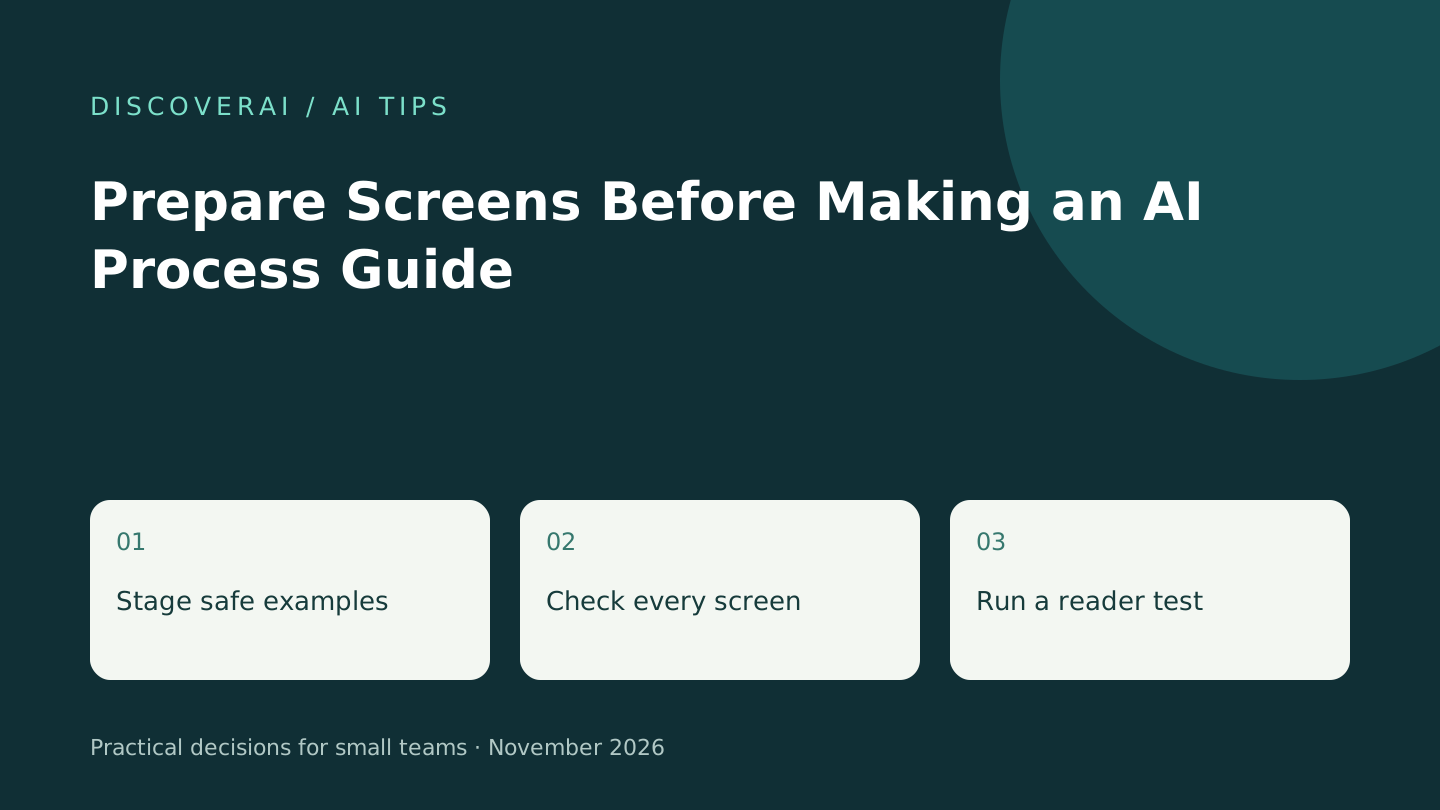
Before capturing a process for an AI-assisted guide, prepare a demonstration that contains only information the intended reader should see. This is more dependable than discovering private material after the guide has been shared. The workflow below is an editorial checklist, not a measured test of a product.
Capture tools can make visual instructions convenient, but their feature boundaries matter. Scribe and Tango distinguish manual editing from automatic sensitive-data controls across plans. Verify your entitlement instead of assuming the tool will remove everything for you.
Free content AI buyer checklist
Find writing tools worth the editing time.
Check accuracy, sources, tone and editing time with our buyer checklist. You’ll also receive the weekly AI briefing.
Step 1: define the reader and the outcome
Write one sentence describing what the reader should accomplish. For example: “A new volunteer can update a fictional event's start time and confirm that the public preview is correct.” This teaching example needs no donor records, payment information or real participant names.
List the permissions and starting screen. If the demonstration uses an administrator account while readers have limited access, the resulting instructions may be impossible to follow. Use the least privileged account that can perform the task.
Step 2: stage the whole screen
Create fictional records with obviously invented names. Close unrelated tabs, hide notifications and check the browser's bookmarks, profile area and address bar. A screenshot can reveal information outside the application panel you meant to document.
Check what appears after each click, including menus, search suggestions and confirmation messages. Do not assume that cleaning the starting screen cleans the rest of the sequence. If you cannot safely stage the process, use a written explanation or an approved mockup instead.
Step 3: write the decision rules before capture
List the actions, the reason for each and the point where the reader should stop. A useful instruction might say: “If the preview shows a different date, stop and ask the event owner.” That is more useful than silently continuing through a successful demonstration.
Capture only the required sequence. Remove accidental detours and explain necessary waiting states. Ask the AI-assisted editor for concise wording, but compare every generated step with the real procedure.
Step 4: inspect the finished artifact
Review each screenshot at full size. Check names, URLs, hidden panels, copied text and any downloadable files. If your tool supports redaction, inspect the exported result too; a clean-looking editor view is not a check of every delivery format.
Open the shared link as the intended reader or use the appropriate access preview. Confirm that a private draft has not become publicly accessible and that the intended audience can actually open it. This is an access check, not an invitation to bypass permissions.
Step 5: run a reader test
Give the guide to someone who did not make it. Ask them to complete the fictional task without coaching. Note where they ask questions and repair those gaps before sharing the instructions more widely.
Record the owner, creation date and the app screen or process change that should trigger a review. Use the trial scorecard to compare authoring and maintenance work. Our Scribe review and Tango review explain the purchasing questions separately.
Ready-to-share check
Share only when the example is appropriate for its audience, the steps match the real task, a reader has completed it and someone owns future updates. The goal is a reliable handoff, not a large collection of screenshots.
Transparency
How this guide was checked
About this article
How this article was prepared
- Evaluation type
- Source-based research
- Last reviewed
- Evidence
- 2 listed sources
We label hands-on testing separately. Research-based articles draw on product documentation and other cited sources, rather than direct use of every plan. Read the full methodology.
Editorial basis
Sources and testing
- Editorial basis
- Source-based research
- Primary references
- 2
- Products covered
- 2
- Last checked
- 2026-11-21
Important limits
- • Features, availability and prices can change. Check the provider’s current terms before buying.
Sources and references
References cited by this article. Check the original source for scope, dates and current terms.
Tools mentioned in this article
Scribe
Evaluate Scribe for small-team process documentation: capture, export and redaction limits, ambiguous pricing and a practical handoff test.
Evaluate Scribe for small-team process documentation: capture, export and redaction limits, ambiguous pricing and a practical handoff test.
Tango
Review Tango for small-team onboarding: free workflow limits, paid AI and exports, plan inconsistencies and a practical reader-completion test.
Review Tango for small-team onboarding: free workflow limits, paid AI and exports, plan inconsistencies and a practical reader-completion test.
Read next