In this guide
Short answer
Track each excerpt’s position in the original recording before you generate captions. Correct words can still appear at the wrong time when separately transcribed clips are combined. Review the final timeline, not only the individual exports.
Download the public caption join checklist. This is a proposed workflow, not a benchmark result or a guarantee of accessibility compliance.
Free AI tool buyer checklist
Make the next AI subscription earn its place.
Get the weekly top 5 AI tools, one practical workflow and one way to reduce AI spending. Includes a free buyer checklist.
1. Keep the original timeline
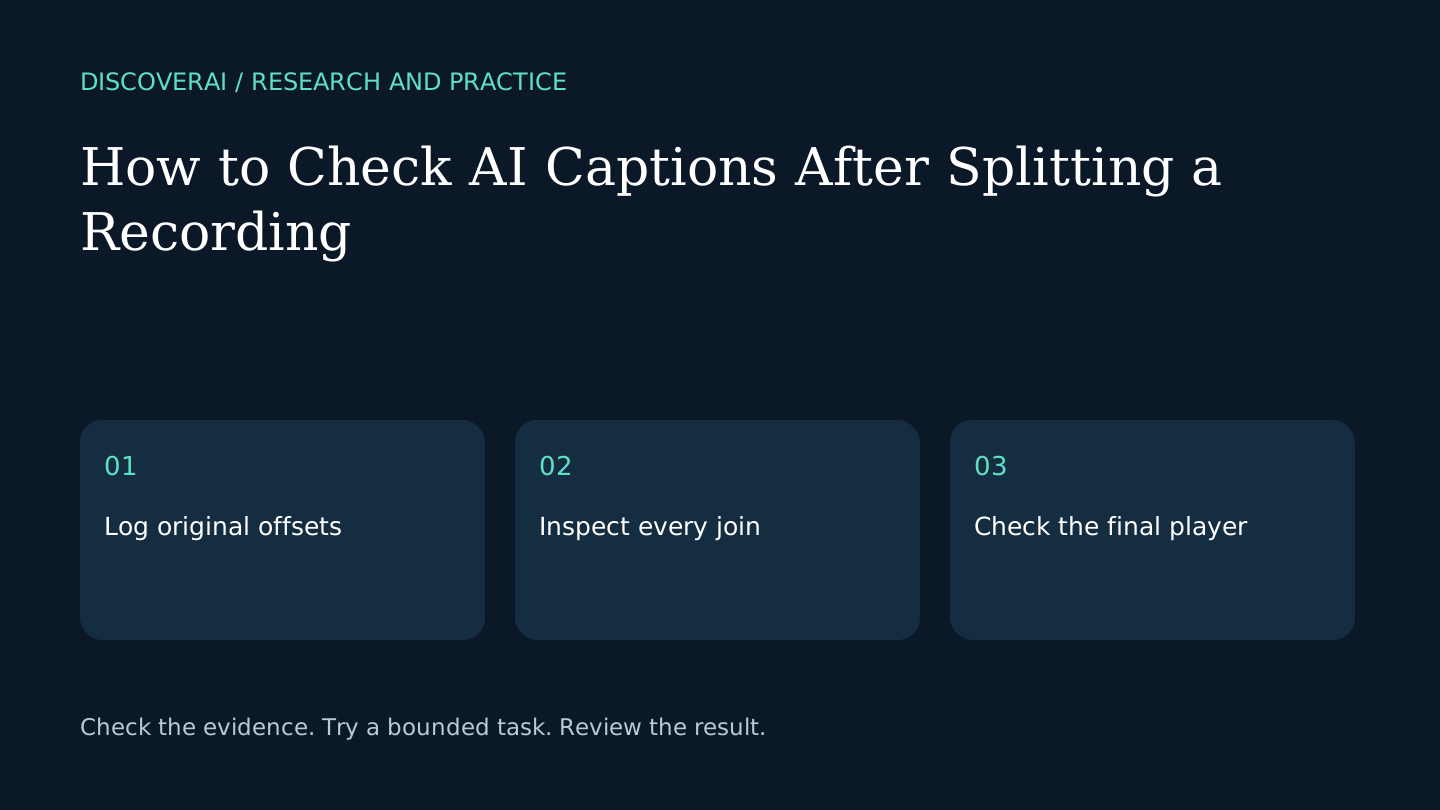
Preserve an unchanged original recording. Create a simple log with clip filename, original start time, original end time and any overlap. Use a consistent time format. Do not rely on filenames alone to reconstruct the sequence later.
Choose split points during pauses when practical. Cutting inside a word or a sentence can remove context from recognition and make the join hard to inspect. If you add an overlap for context, record it so it does not become duplicated speech in the final captions.
2. Choose limits before preparing clips
The WhisperWeb website documents 200 MB and 20 minutes per file, with editable timing and subtitle exports. Other tools have their own limits. Check the selected tool before splitting, including whether the actual file encoding is supported.
Process a short excerpt first. Keep the spoken language and output settings consistent across clips unless the source needs a deliberate change. A website’s display language is not necessarily its recognition-language setting.
3. Apply offsets once
If a clip begins at ten minutes in the original, a caption at five seconds within that clip belongs at ten minutes and five seconds in the combined timeline. Add the original start offset to both the start and end of each caption.
Check your editor’s import behavior before manually changing timestamps. Some workflows position a subtitle track on import; others expect absolute times in the file. Applying both methods can shift the captions twice. Use a clearly recognizable line as an anchor to verify the chosen method.
4. Inspect every join
Listen before and after each split. Look for repeated captions, missing phrases, backward timestamps and a caption that remains visible into the next speaker’s turn. Keep overlap handling explicit rather than deleting anything that merely looks repetitive.
If your preparation removed silence or changed playback speed, a simple fixed offset may no longer be enough. Return to the actual edited media timeline and verify alignment there. Preserve a note of the edit so another person can reproduce it.
5. Check content and timing together
Replay names, amounts, negations and corrections against the audio. Confirm that a caption does not reveal a later statement too early or remain after it is spoken. Review readable line breaks at the viewing size your audience will use.
Include the final line in the check. Small timing errors can accumulate or remain unnoticed near the end when only the opening is inspected. If there is uncertainty in the words, mark it for review rather than inventing a confident replacement.
6. Verify in the destination
Import the finished SRT or VTT into the actual player or publishing platform. Check the opening, each join and the final minute. Save the approved subtitle file with the media version it matches; replacing the video can invalidate an otherwise correct caption file.
Our WhisperWeb review explains the documented tool limits. Use the checklist without signup, and keep the recording until a reviewer confirms the final export.
Transparency
How this guide was checked
Editorial accountability
Who checked this guide
- Evaluation type
- Research-based verification
- Last materially checked
- Evidence
- 1 listed sources
Hands-on testing is identified explicitly. Research-based coverage uses cited product documentation and other named sources; it does not imply every paid plan was used. Read the full methodology.
Editorial basis
What this guidance is based on
- Editorial basis
- Source-led analysis
- Primary references
- 1
- Products covered
- 1
- Last checked
- 2026-10-27
Important limits
- • Features, availability, and pricing can change after publication; confirm consequential details with the provider.
Sources and references
References cited by this article. Check the original source for scope, dates and current terms.
Frequently asked questions
Should each clip start its captions at zero?
That is common for individual clips. The combined file needs the correct original offsets unless the editor positions tracks for you.
Can I just concatenate SRT files?
That can leave repeated numbering, overlapping timestamps and zero-based segments. Verify the combined timeline in an editor.
Does the checklist require an email?
No. The CSV is publicly downloadable.
Tools mentioned in this article
WhisperWeb
Review WhisperWeb’s free local transcription, file limits and subtitle exports. Learn what to check on your device before relying on a generated transcript.
Review WhisperWeb’s free local transcription, file limits and subtitle exports. Learn what to check on your device before relying on a generated transcript.